
Reading results
Audience: All users
Goal: Interpret analysis output—narrative, charts, tables, and downloadable files—and revisit, retry, or refine any individual result.
Results layout
When a query completes, results appear in the session thread above the composer. Every visible result — the summary, each chart, each data table — is a first-class artifact you can revisit later without re-asking the question. PrismBI prioritizes analysis-first content:
- Analysis summary — plain-language narrative of findings
- Charts — bar, line, or comparison visualizations when applicable
- Tables — supporting row data (expand Supporting data under charts)
- Downloads — intentional files (HTML reports, exports, images) when produced
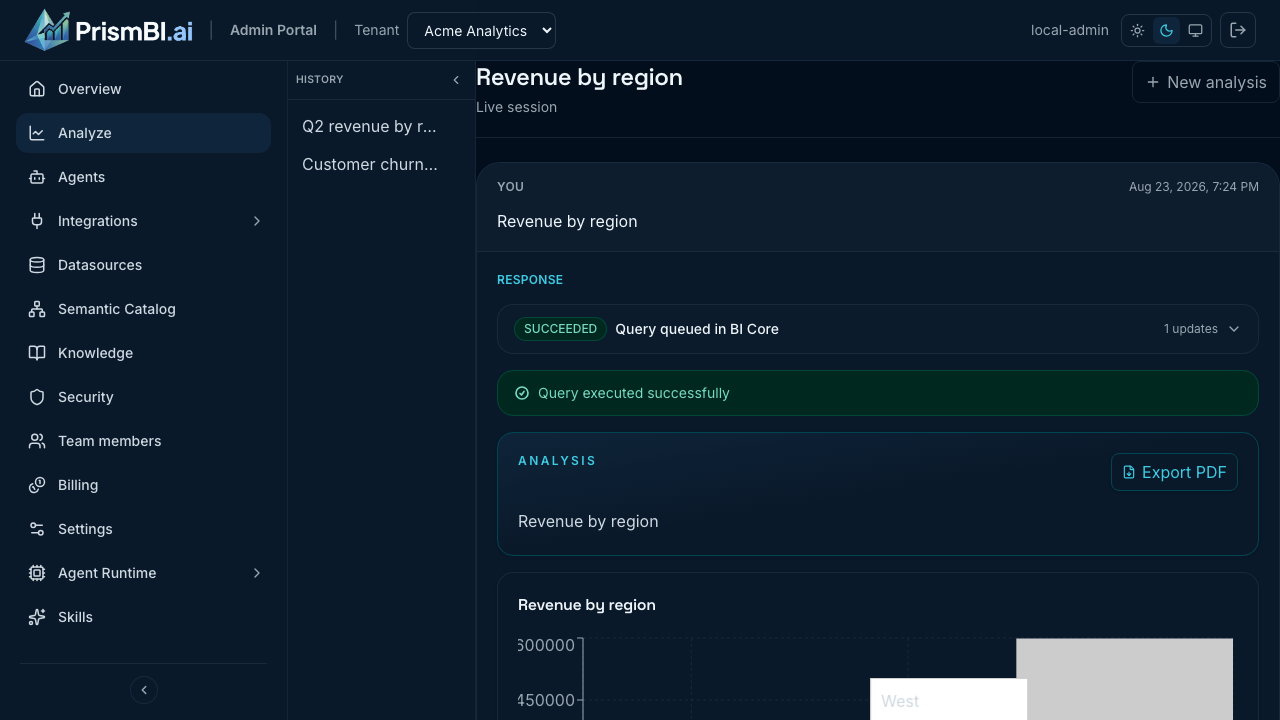
Figure: Analysis summary, chart, and supporting data.
Analysis summary
The summary is the primary narrative. It highlights trends, comparisons, and caveats in business language. Raw SQL and internal agent markdown are not shown in user mode.
Focusing a result
Hover any chart, table, or summary in the thread and click Expand to open it in a focus view. The focus view shows the result larger, together with its title, the analysis summary that explained it, and its supporting data. Closing the focus view returns you to exactly where you were reading — your scroll position is preserved.
Focusing never re-runs the analysis and never uses credits: the result is re-drawn from stored data.
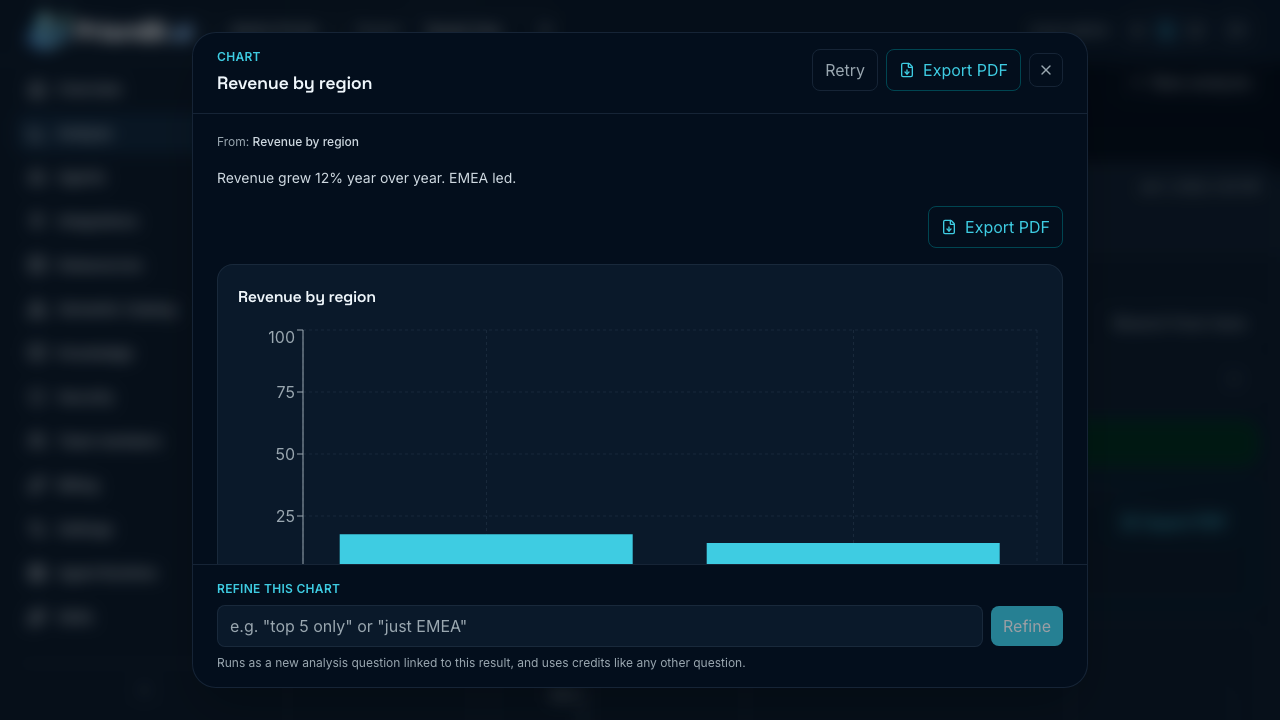
Figure: A chart from earlier in the thread opened in focus view.
Polishing charts
Charts are analytically correct as generated, but not always presentation-ready. The Polish action on any completed chart (hover the chart in the thread, or open it in the focus view) improves its appearance without touching the underlying data.
- Presets — one-click themes such as Executive (larger title, muted grid, emphasized top series), Minimal, and Vibrant. Presets are free and instant.
- Style instructions — describe the change in plain language, for example "rotate the x-axis labels 45 degrees" or "emphasize Q4". Each instruction applies on top of the previous styling. Style instructions use credits, like asking a question.
- Revert — Revert to default styling restores the original appearance in one click. Reverting is always free.
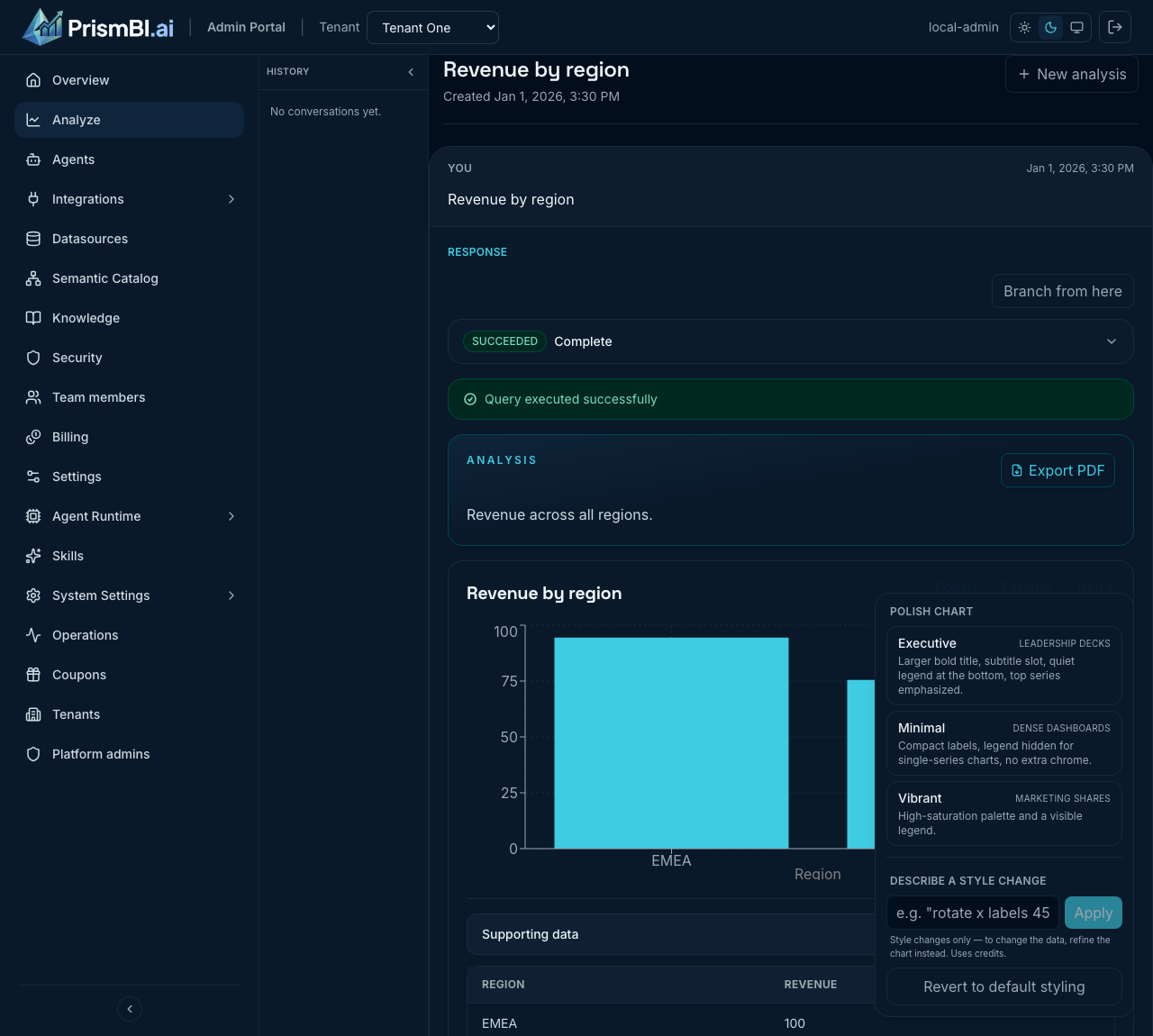
Figure: The Polish menu offers one-click presets, a natural-language style box, and revert.
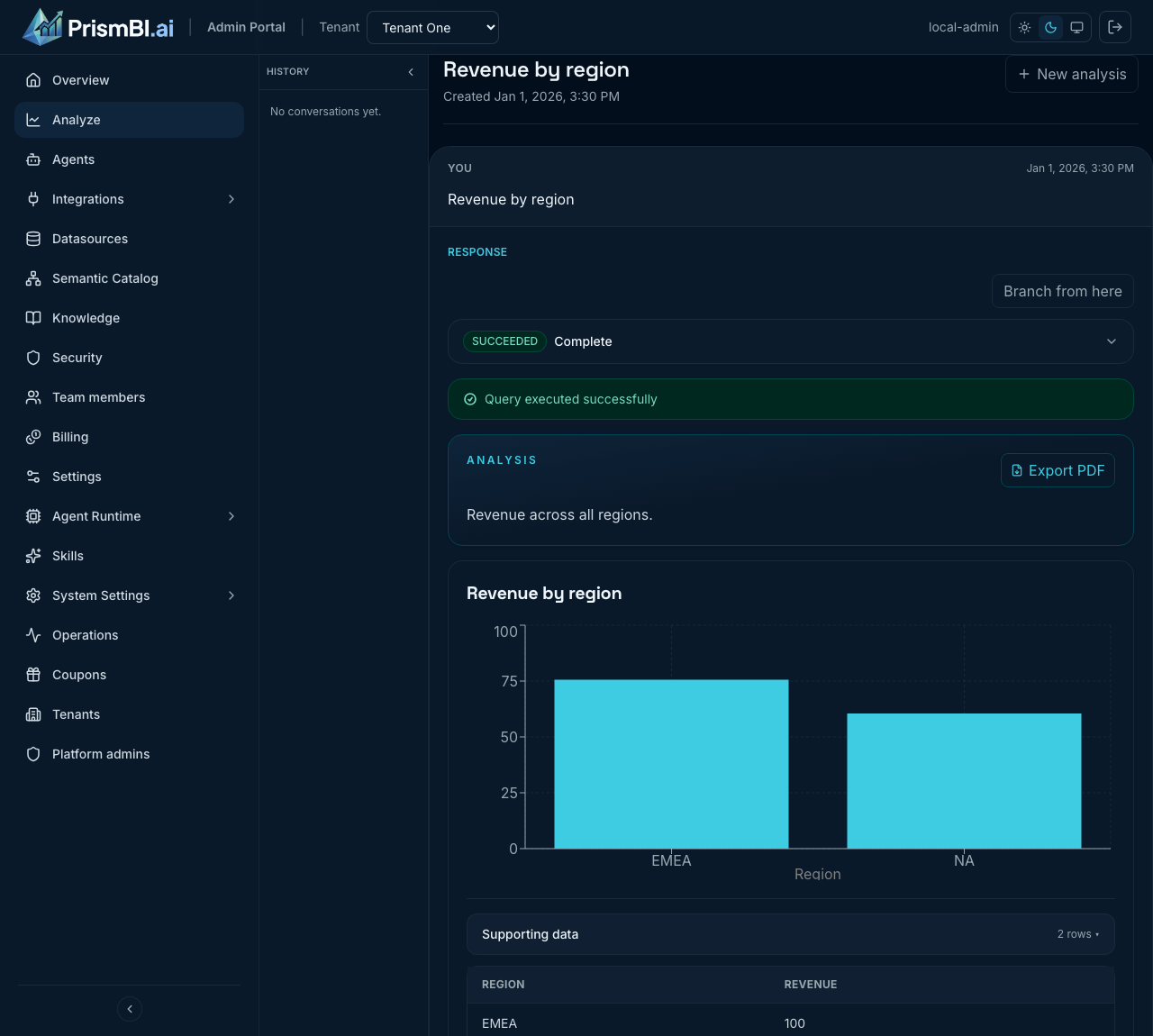
Figure: A chart polished with the Executive preset—bold title and presentation-ready styling, same data.
Polish changes only how the chart looks—never the data behind it. To change what the chart shows (different metric, filters, chart type), use Refine instead; polish refuses such requests and tells you why.
If your tenant has a brand theme configured, polished charts use your organization's colors by default. Styling persists with the chart: reloading or reopening the conversation from History shows the polished version, and PDF exports include it. If a chart is later retried and regenerated, its styling is kept and a note reminds you to review it.
Editing charts
Open a chart in focus view and click Edit chart to adjust what the chart shows — not just how it looks. (For appearance-only changes like colors and annotations, use Polish instead.)
Chart recommendations — the edit panel opens with a Recommended section that explains, in plain language, why the current chart type fits your data (for example, "Line chart recommended for trends over time") and lists alternative chart types ranked by how well they fit:
- Compatible alternatives are one click away — the chart re-draws instantly from its stored data, with no new analysis and no credits used.
- Alternatives that don't fit your data appear greyed out; hover them to see why (for example, "Pie needs between 2 and 12 categories; this result has 50"). They can never be applied to data they can't represent.
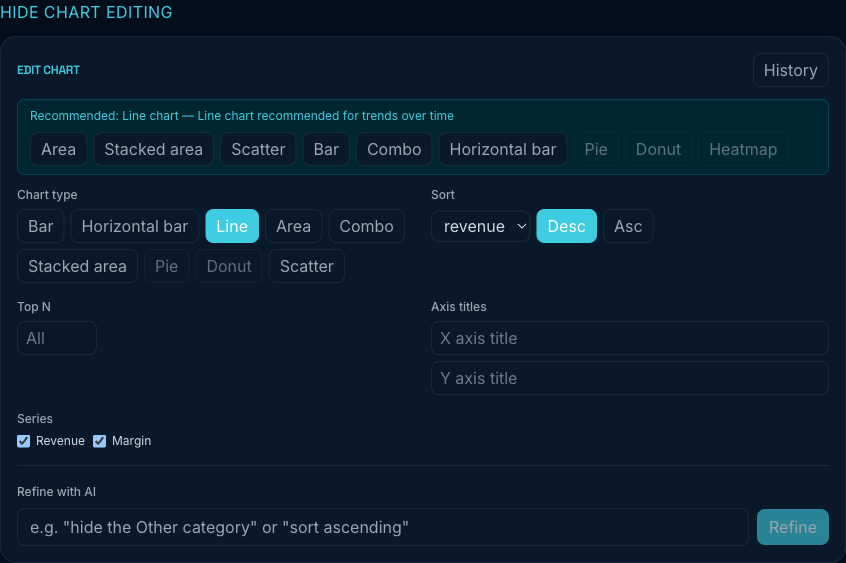
Figure: The Recommended section explains why the chart type fits and offers one-click alternatives; types that don't fit the data are greyed out.
Recommendations consider your question's intent, the columns' types, and the shape of the result rows — so the same chart type suggestions you'd get from an analyst are built in. When the assistant has a clear visualization preference, its preferred chart types are ranked first whenever they fit the data.
Quick controls — change the chart type (bar, line, pie, and more, limited to what fits your data), sort field and direction, Top N row limit, series visibility, and axis titles. Controls apply instantly from the chart's stored data: no new analysis runs and no credits are used. Changes save automatically and persist — reloading or reopening the conversation shows the edited chart.
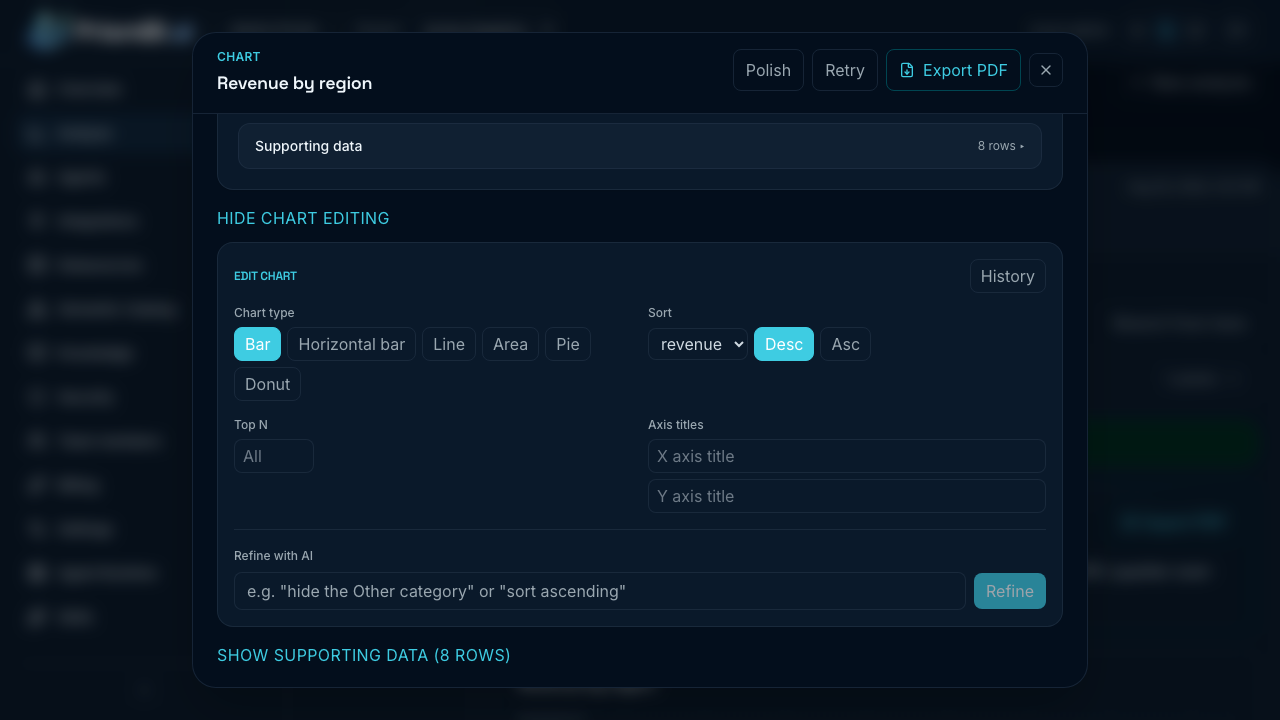
Figure: The Edit chart panel on a focused chart — structural controls apply instantly and never use credits.
Refine with AI — describe the change in plain language, for example "hide the Other category" or "sort ascending". PrismBI first decides whether your request only changes the presentation:
- Presentation-only requests show a live preview of the updated chart. Click Apply to keep it or Discard to leave the chart unchanged. These refinements never run a new query and never use credits.
- Requests that need new data (for example "add profit margin column") tell you so and ask "This requires a new query — Continue?" before anything runs. Confirming runs a scoped analysis anchored to the chart, updates it in place, and uses credits like asking a question. Cancelling leaves the chart exactly as it was.
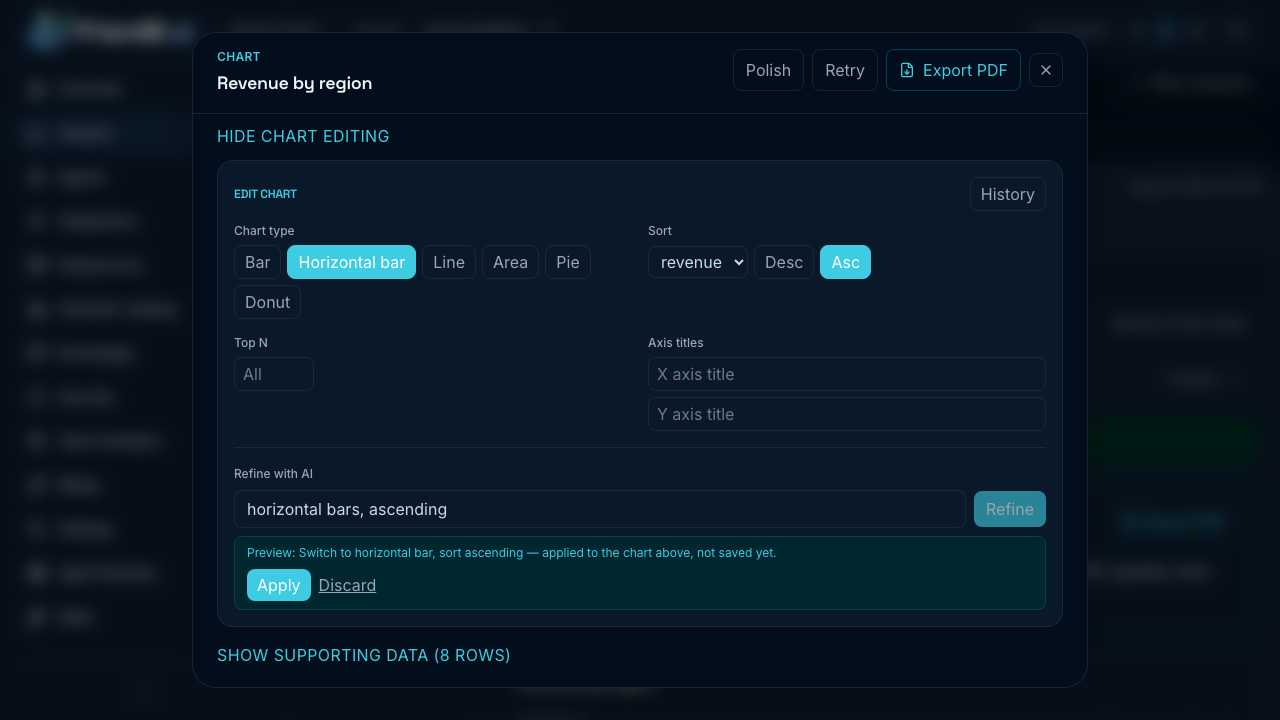
Figure: A presentation-only refinement previews on the chart before you apply it — free, no new query.
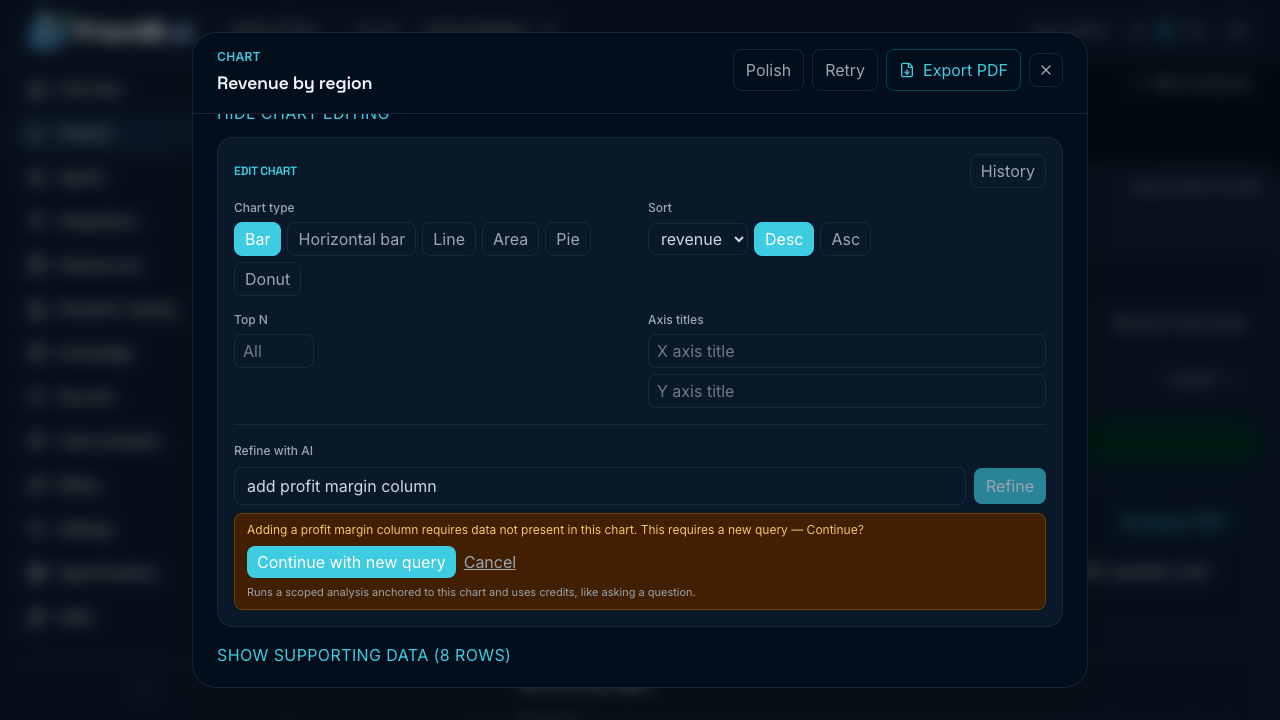
Figure: Refinements that need new data always ask before running — nothing executes without Continue.
Version history — click History in the edit panel to browse every version of the chart, from the original generation onward. Preview any earlier version to see it rendered, and Restore this version to make it current. Restoring adds a new version rather than rewriting history, so you can always undo a restore.
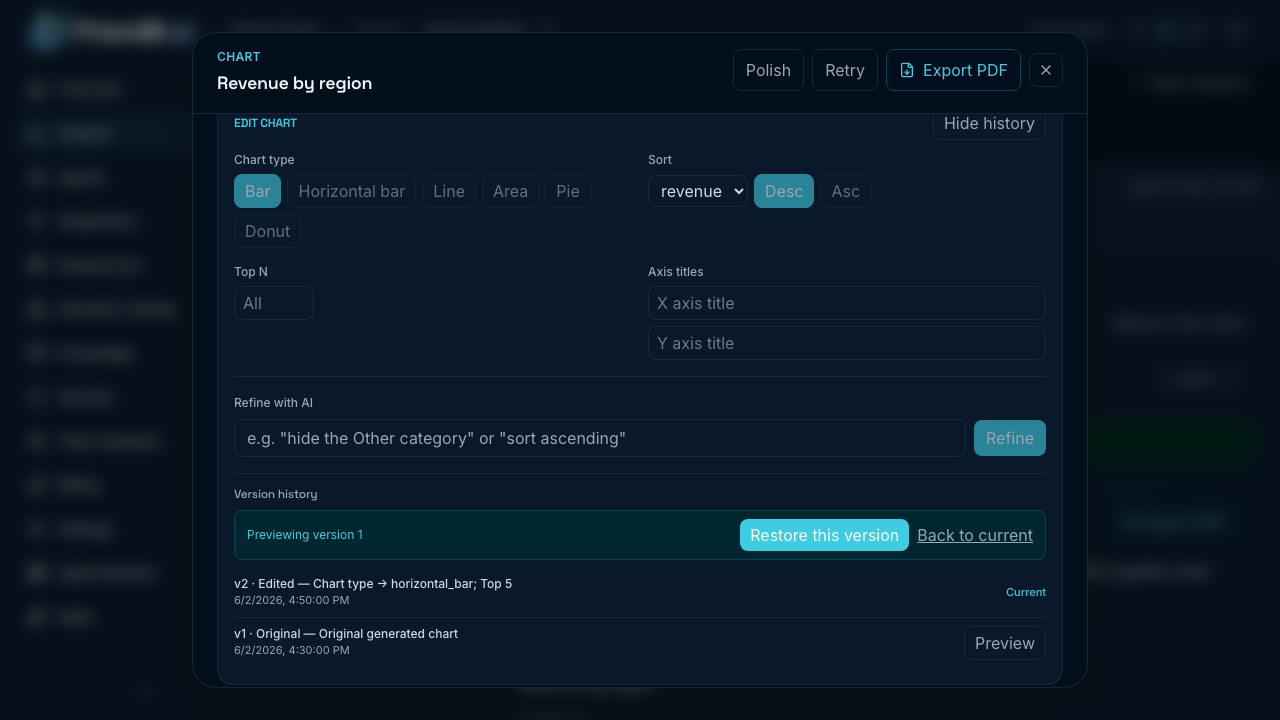
Figure: The version browser previews any earlier version and restores it as a new entry.
Setting a Top N larger than the chart's cached rows needs a new query — the edit panel tells you and routes you through Refine with AI with a confirmation.
Chart types and when they're suggested
| Chart type | Suggested when your data has… |
|---|---|
| Bar | A category column (region, product, …) and one or more numeric measures |
| Horizontal bar | Categories with long labels, or ranked lists (top/bottom N) |
| Line | A time-ordered axis (month, quarter, date) and a measure — trends |
| Area | A trend where the magnitude over time matters |
| Stacked area | Two or more series over a time axis — how parts add up over time |
| Combo | Two or more measures on different scales over the same categories (bars + lines) |
| Pie / donut | A part-to-whole breakdown with 2–12 categories (best with fewer than 8) |
| Scatter | Two numeric measures — relationships and correlation |
| Heatmap | A matrix: two dimensions plus a numeric value (e.g. sales by region × month) |
If a result can't be drawn as any chart type (for example a single row, or a chart type the portal doesn't support), it appears as a table with a short explanation instead.
Retrying a result
If a chart or table came back empty or wrong, hover it and click Retry (or open it in focus view and use Retry there). PrismBI re-runs the analysis behind that turn and updates only that result — the summary and other results in the same turn stay exactly as they were.
Things to know:
- A retry runs a full analysis and uses credits, just like asking the question again. A confirmation tells you this before it runs.
- A retried result shows a Retried marker. Because the rest of the turn is unchanged, a retried chart can occasionally disagree with the summary beside it — retry again, or ask a follow-up, if that happens.
- Retry needs the turn to be finished; it is not available while analysis is still running or when your tenant is out of credits.
Refining a result
Charts refine in place from the focus view's Edit chart panel — see Editing charts above. Presentation tweaks apply without a new query; refinements that need new data ask for your confirmation first.
Tables refine from the focus view's Refine box with a short instruction — for example "top 5 only" or "just EMEA". You do not need to restate the question: PrismBI knows which result you mean. A table refinement runs as a new turn in the thread, so your original result stays untouched and the refined turn is marked as linked to the earlier result. Each refinement uses credits like any other question.
Downloads and export
- Downloads panel — appears when the analysis produces intentional files (reports, CSV exports from tools, images). Auto-generated row CSV dumps are filtered out by default.
- PDF export — use the PDF action on a completed result when your tenant enables it, to share a snapshot outside the portal. From a focus view, export captures the focused result.
Tips
- Read the summary first, then validate with the table.
- Expand supporting data before presenting numbers to stakeholders.
- Suggested follow-up prompts may appear after completion—use them as starting points, not mandatory next steps.
- In a long thread, expand earlier charts instead of scrolling back and forth.
Troubleshooting
| Issue | What to try |
|---|---|
| Chart missing or empty | Hover it and click Retry — no need to rephrase. If it stays empty, rephrase to request a breakdown |
| Numbers look wrong | Check datasource, date filters, and row limit in Options |
| No downloads | Not every query produces files; request a report explicitly in your prompt |
| No Expand/Retry on an older conversation | Artifact actions are available on analyses run after this feature launched; older conversations still read exactly as before |