
File uploads
Audience: All users
Goal: Analyze ad-hoc files without querying a warehouse datasource.
When to use uploads
| Use uploads | Use a datasource |
|---|---|
| One-off CSV or Excel analysis | Recurring questions against governed warehouse data |
| PDF or text documents for interpretation | Large production datasets with semantic models |
| Quick prototyping before IT connects a database | Queries that require live operational data |
Supported file types
- CSV, TSV, TXT
- XLS, XLSX
Limits are shown in the attach control tooltip (default: up to 3 files per query, size cap per file—confirm with your tenant admin).
Attach files
- In Explore, click Attach files in the composer toolbar.
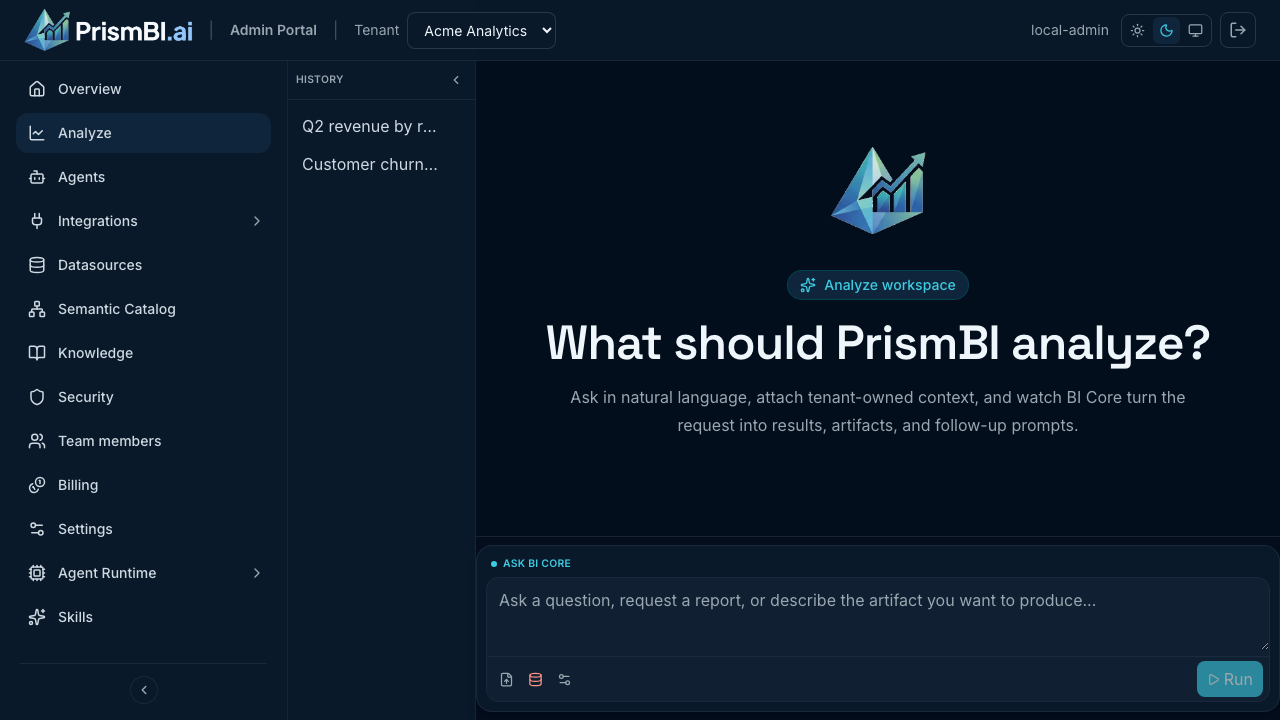
Figure: Attach files from the composer.
- Select one or more supported files from your computer.
- Wait for upload and preview to complete.
- Type your question and click Run.
Uploaded files are sent to PrismBI for the current query context. They do not replace tenant datasource configuration.
Tips
- Clean column headers in CSV/Excel improve first-pass accuracy.
- For large spreadsheets, filter or sample data before upload if you hit size limits.
- Combine uploads with a clear prompt (“Summarize revenue by month from this file”).
- The same file types work when you attach files in Slack.
Troubleshooting
| Issue | What to try |
|---|---|
| Upload rejected | Check file type and size; reduce number of attachments |
| Wrong preview | Server preview may fall back to local preview—re-upload if needed |
| Upload disabled | Tenant may disable local upload analysis in Edge runtime settings |