
Explore basics
Audience: All users
Goal: Orient yourself in Explore before running your first question.
Open Explore
- Sign in to the Admin Portal with your organization credentials (enterprise SSO via AWS Cognito, or your IT-provided method).
- Select your tenant from the header switcher if prompted.
- Click Analyze in the sidebar (or go to
/explore).
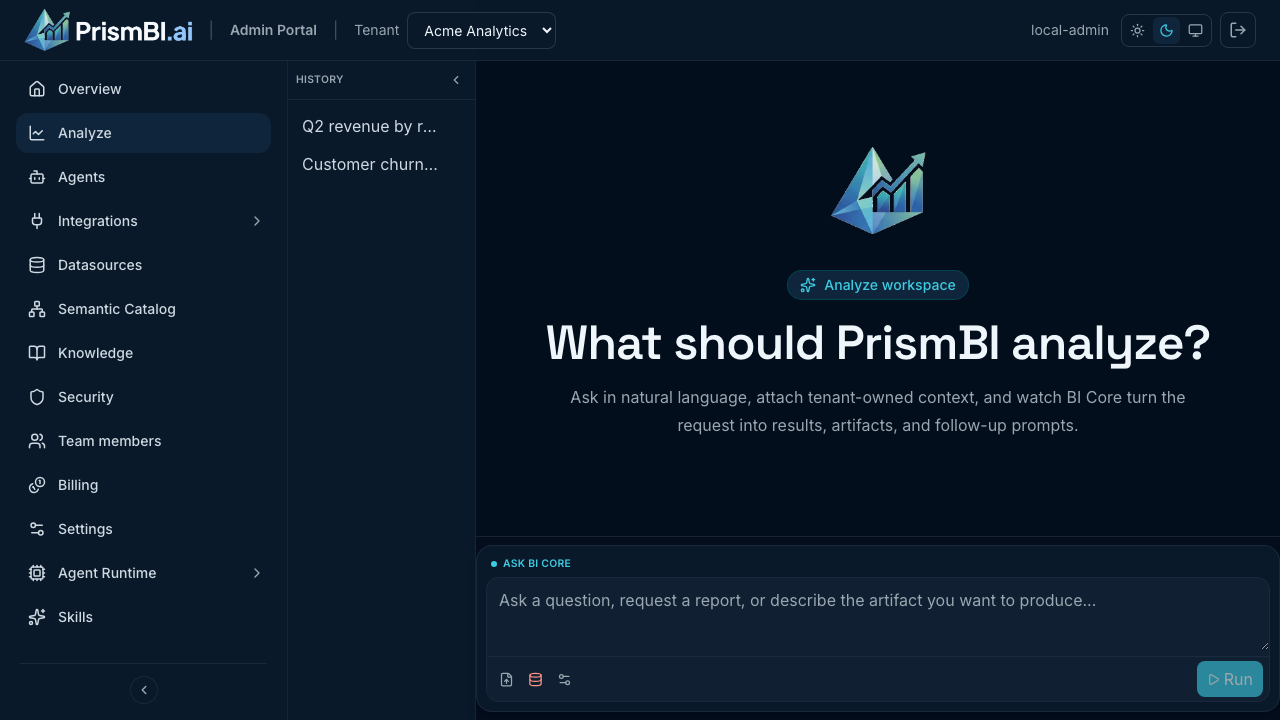
Figure: Explore idle state with the composer at the bottom.
The composer
The composer is the panel at the bottom of Explore. It is where you type questions and configure context for each analysis.
| Control | Purpose |
|---|---|
| Analysis prompt | Type your question in plain language |
| Attach files | Upload CSV, TSV, TXT, PDF, XLS, or XLSX for ad-hoc analysis |
| Datasource | Pick which connected database to query |
| Options | Row limit and related settings |
| Run | Submit the question to PrismBI |
Choose a datasource
Selecting a datasource tells PrismBI which governed database connection to use. If you skip this step, the platform may auto-select a datasource, which can affect cost and accuracy.
- Click Datasource in the composer toolbar.
- Select the datasource your team uses for the topic you are exploring (for example, Sales Warehouse).
- Close the dialog and confirm the datasource tag appears above the prompt.
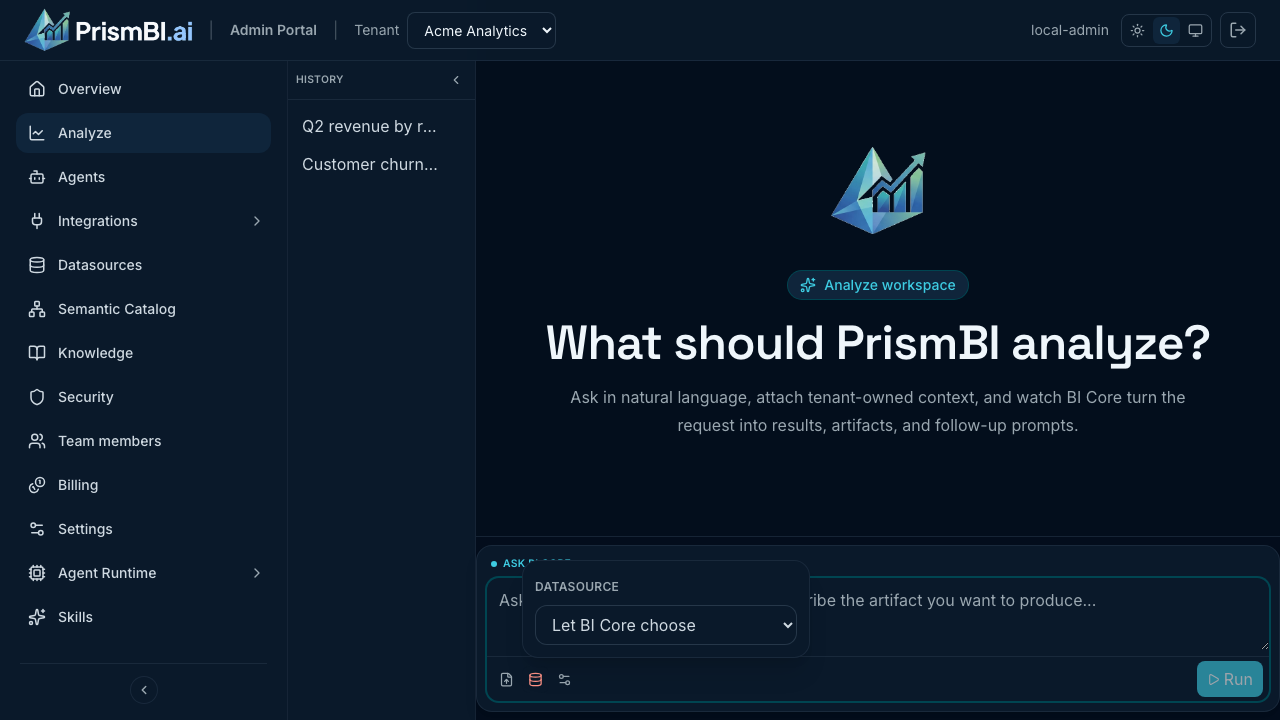
Figure: Choose a datasource before running your question.
Tips
- Name the metric, time period, and dimension in your first prompt (for example, “Q2 2026 revenue by region”).
- Confirm the datasource matches the data your question needs—finance vs. operations warehouses are often separate.
- MEMBER users land on Explore by default; bookmark
/explorefor quick access.
Troubleshooting
| Issue | What to try |
|---|---|
| Run is disabled | Enter a prompt, select a datasource, or wait for a running query to finish |
| No datasources listed | Ask a tenant admin to connect and assign a datasource to your Edge Agent |
| Wrong tenant data | Switch tenant in the header before submitting |