
Security roles
Audience: Tenant admin
Goal: Create custom roles with fine-grained feature permissions and optional field-level data access.
Every tenant includes built-in Admin and Member system roles. Tenant administrators can add custom roles that combine specific admin capabilities with scoped Analyze access.
Open Security roles
- Open Security → Roles (
/security/roles).
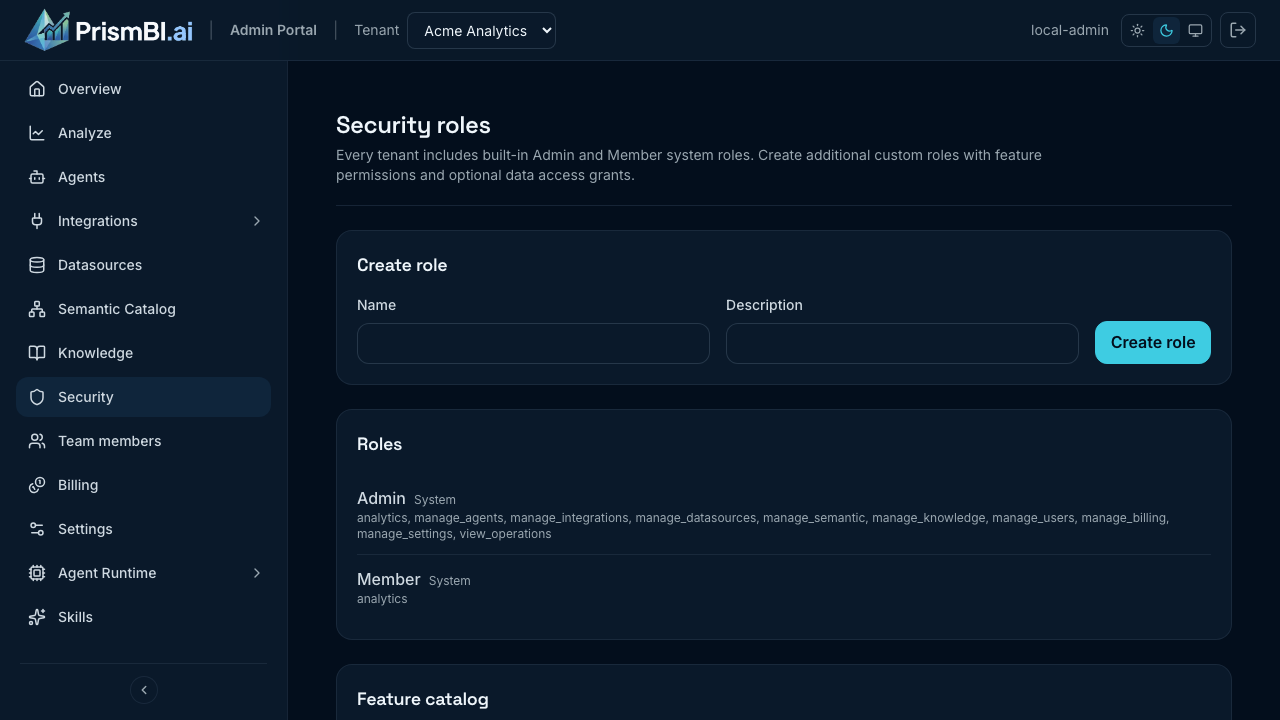
Figure: Create a custom role and review built-in Admin and Member system roles.
- Review Admin and Member — these are seeded automatically and cannot be edited or deleted.
- Use the Feature catalog at the bottom of the page as a reference while designing custom roles.
Create a custom role
- On Security → Roles, enter a Name and optional Description in the Create role form.
- Click Create role.
New roles start with Analytics enabled and no data-access restrictions. The portal opens the role detail page where you configure permissions.
Naming
Use names that describe the job function (for example Data_Analyst, Semantic_Editor, Billing_Viewer) so assignments stay clear on Team members.
Configure feature permissions
Open a custom role from the roles list (/security/roles/:roleId). The Features section controls which parts of the Admin Portal and Analyze the role can use.
Route access vs. feature toggles
Most configuration pages (Agents, Datasources, Semantic catalog, Sharing, Evaluations, BI apps, Reports, Operations) require the built-in ADMIN system role on Team members, even if a custom role enables the matching feature.
Custom roles reliably unlock Analyze, Team members, Security roles, and Integrations → Messaging when the corresponding features are checked. Settings and Billing also require built-in ADMIN today, despite feature toggles on custom roles.
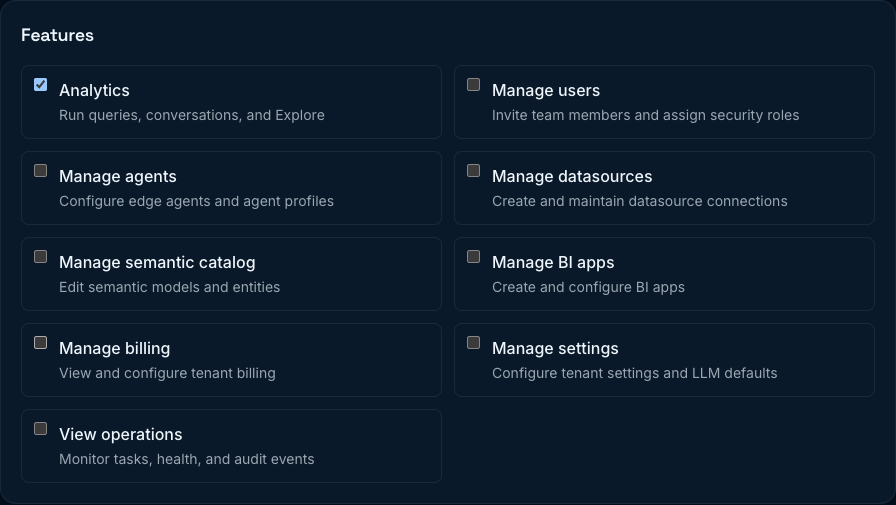
Figure: Toggle individual features for a custom role.
| Feature | What it grants |
|---|---|
| Analytics | Analyze — run queries, conversations, and Explore |
| Manage users | Team members — invite users and assign roles |
| Manage agents | Agents — edge agents and agent profiles |
| Manage datasources | Datasources — connections and credentials |
| Manage semantic catalog | Semantic Catalog — entities, fields, and relationships |
| Manage BI apps | BI app configuration (when enabled for your tenant) |
| Manage billing | Billing and usage |
| Manage settings | Settings — tenant settings and LLM defaults |
| View operations | Operations — tasks, health, and audit events |
How features combine
- Check every feature the role should have, then click Save role.
- A user’s effective permissions are the union of all roles assigned to them on Team members.
- Users with the built-in Admin system role bypass feature checks and always have full tenant access.
- Analytics must be enabled for the Data access section to appear. If you turn off Analytics, any data grants on save are cleared.
Example role patterns
| Role intent | Typical features |
|---|---|
| Analyst (Explore only) | Analytics |
| Semantic modeler | Analytics, Manage semantic catalog, Manage datasources |
| Platform delegate (no billing) | All except Manage billing |
| Read-only operator | View operations |
Map semantics to data access (field-level security)
When Analytics is enabled, the Data access section scopes which datasource entities and fields users can query in Analyze. The tree is built from your Semantic Catalog — each datasource expands to semantic entities, and each entity lists its fields.
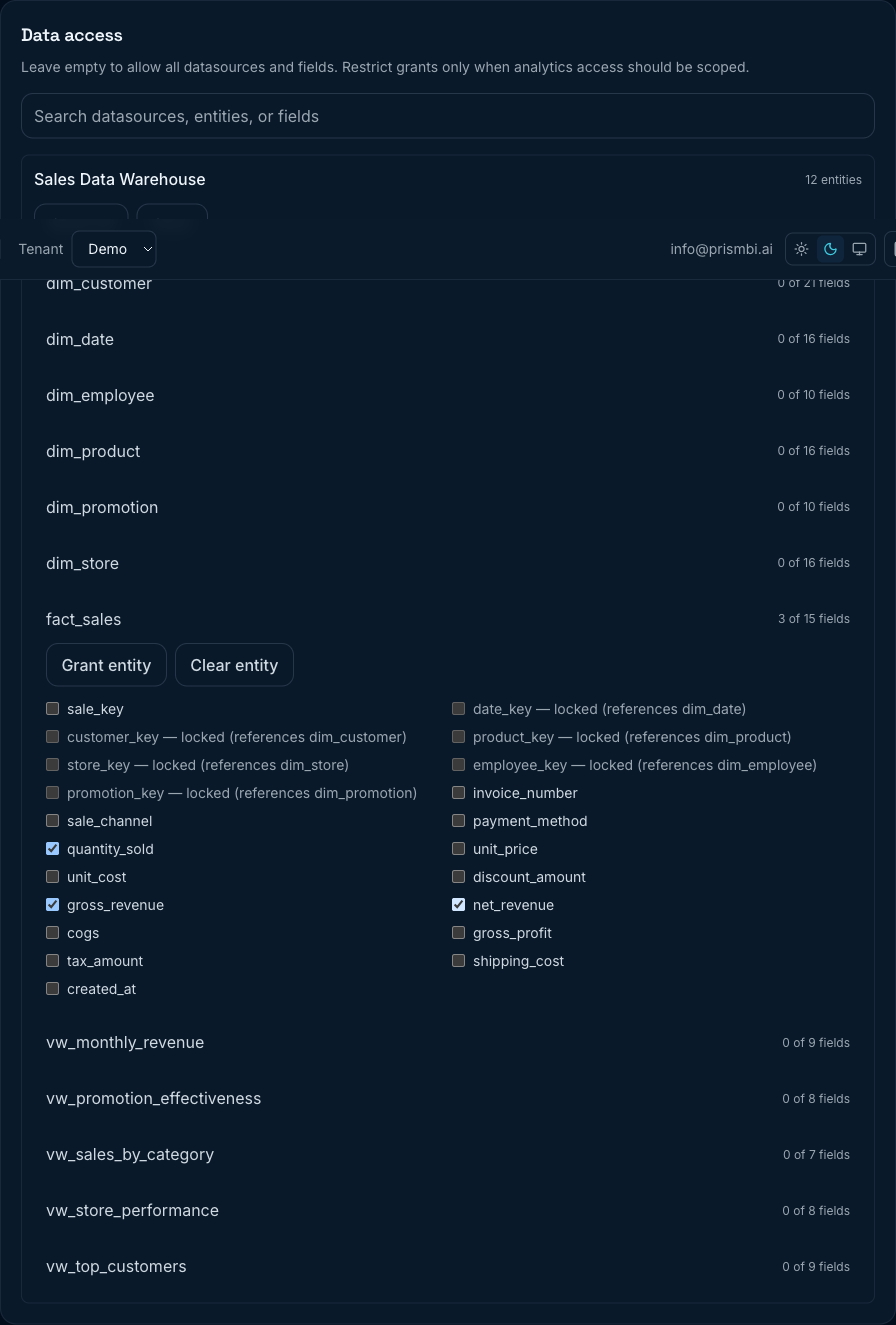
Figure: Grant fields on fact_sales; foreign-key fields stay locked until their target entity is granted.
Default: unrestricted analytics access
Leave Data access empty to allow all datasources and all fields for users with this role. Add grants only when Analyze should be limited (for example PII columns, finance-only facts, or a single warehouse).
Grant levels
Use the tree and action buttons at three levels:
| Level | UI action | Effect in Analyze |
|---|---|---|
| Datasource | Grant all on a datasource row | Full access to every entity and field in that datasource |
| Entity | Grant entity on an entity row | All selectable fields on that entity |
| Field | Individual field checkboxes | Only the checked fields on that entity |
The entity summary shows progress, for example 3 of 12 fields, until the whole entity is granted.
Use the search box to filter by datasource name, entity name, or field name when the catalog is large.
How semantics drive the catalog
PrismBI does not expose raw database tables in this editor. It reads the tenant Semantic Catalog:
- Datasources you connect appear as top-level rows (for example Sales Data Warehouse).
- Each semantic entity (for example
fact_sales,dim_customer) appears under its datasource. - Each field on that entity matches what the agent and Explore use at query time.
Keep the semantic model accurate before assigning field grants — renamed or missing entities in the catalog will not appear here. See Semantic catalog.
Relationship locks (foreign keys)
Fields that reference another entity in the semantic model (for example customer_key → dim_customer) show as locked until the target entity is also granted at datasource, entity, or field level.
This prevents queries that join through a dimension the role is not allowed to see. To unlock a foreign-key field:
- Grant the referenced entity (for example Grant entity on
dim_customer), or - Grant at least one field on that entity, or
- Grant the entire datasource with Grant all.
Locked fields are disabled in the UI and are stripped from saved grants until their target becomes accessible.
Save and verify
- Click Save role after changing features or data access.
- Assign the role on Team members (see below).
- Sign in as a test user (or use a second browser profile) and open Analyze — restricted fields should not appear in results, and queries that require denied entities should fail with a policy error.
Assign roles to users
Built-in ADMIN and MEMBER remain the simplest path for most organizations. For custom roles:
- Open Team members (
/team-members). - When inviting or editing a member, assign one or more roles (built-in or custom).
- Effective access is the union of all assigned roles.
See Team and roles.
Tips
- Start with Member for analysts who only need Analyze with full data access.
- Use custom roles when someone needs Analyze plus a subset of admin pages, or Analyze with field-level restrictions.
- Model sensitive columns in the semantic catalog first, then deny them per role rather than hiding tables at the database layer only.
- When scoping facts, grant related dimensions (
dim_*) so foreign-key fields unlock and joins work. - Review role assignments when someone changes teams or job function.
Troubleshooting
| Issue | What to try |
|---|---|
| Cannot open Security roles | Requires tenant Admin (built-in system role) |
| User missing a sidebar item | Check assigned role Features on Team members |
| Data access section missing | Enable Analytics on the role and save |
| Field checkbox is locked | Grant the referenced entity (shown in the lock label) |
| Custom role too restrictive | Edit the role, temporarily assign Admin while testing, or add a second role |
| Entity not in data access tree | Confirm the datasource is connected and the entity exists in Semantic Catalog |
| Query blocked despite grants | Check all roles assigned to the user; denials from any role apply |