
Tenant settings
Audience: Tenant admin
Goal: Configure tenant-wide defaults for appearance, models, and attachments.
Open Settings (/system-settings/tenant-settings) in the sidebar.
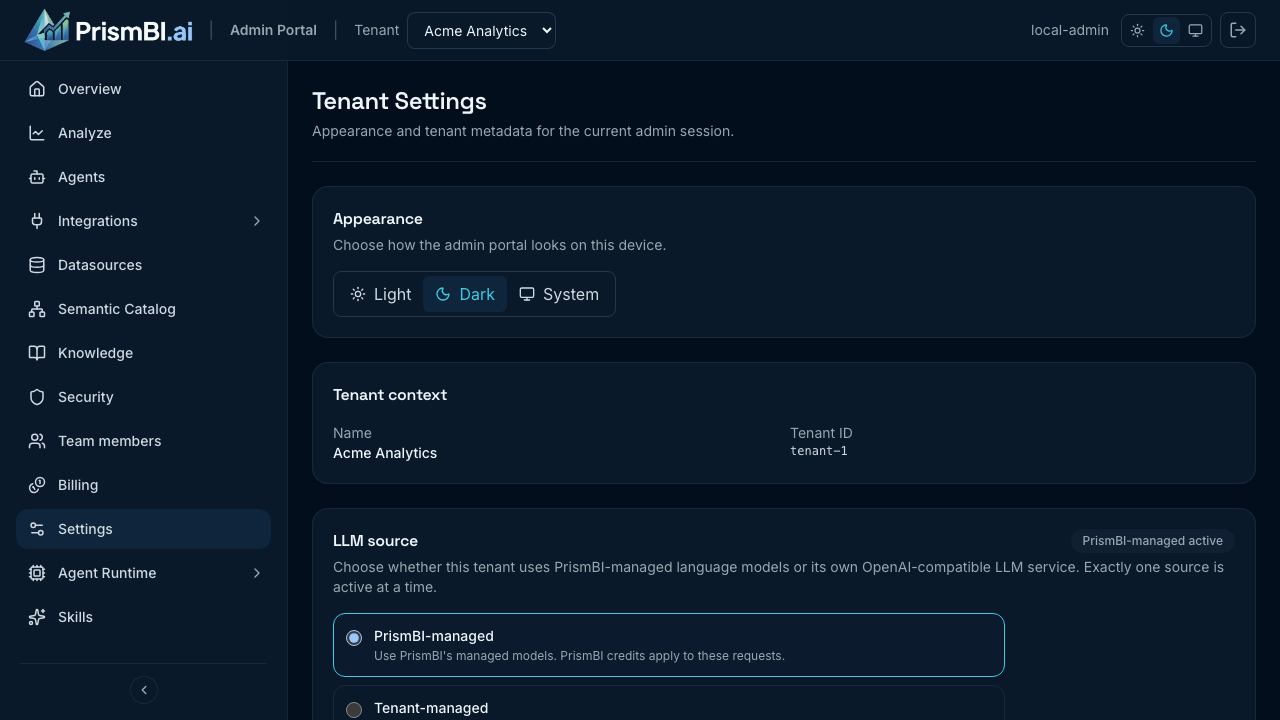
Figure: Appearance, tenant metadata, model defaults, and attachment policy.
Appearance
Choose Light, Dark, or System theme for the Admin Portal on your device. Theme preference is stored locally in your browser.
LLM source
Choose who provides the language models for Analyze:
| Source | When to use |
|---|---|
| PrismBI-managed | Default — PrismBI operates model access and billing |
| Tenant-managed | Bring your own API keys and endpoint (BYOK) for compliance or cost control |
When Tenant-managed is active, the default model picker is hidden and you configure provider credentials, endpoint URL, and Max output tokens in the tenant-managed block. Click Save and activate to commit the source change.
When PrismBI-managed is active, use Default LLM model below to pick the catalog profile for new Analyze sessions.
Default LLM model
Select the default model profile for new Analyze sessions. Profiles show provider and relative cost indicators where configured.
Changes apply to new queries; existing conversations keep their original model selection.
Attachments
Enable or disable file attachments in Analyze for your tenant. When disabled, the attach control is hidden and upload limits from your tenant settings are not offered to users.
Chart brand theme
Configure your organization's primary and secondary brand colors (plus an optional font scale) so charts polished with the Polish action use your brand palette by default. Presets such as Executive draw their series colors from this palette when set.
- Members can still override colors on a specific chart with an explicit style instruction (for example, "make the top series red").
- Changing the brand theme affects future polish operations only—charts polished earlier keep the colors they were saved with.
- Use Clear theme to return to the PrismBI default palette.
Tenant metadata
The settings page shows your organization name and tenant ID for support tickets and API integration checks.
Tips
- Set a cost-efficient default model for broad MEMBER access; reserve premium models for admin testing.
- Disable attachments if your policy prohibits user-uploaded files in analytics workflows.
Troubleshooting
| Issue | What to try |
|---|---|
| Cannot open Settings | Requires tenant ADMIN or equivalent custom role with manage settings |
| Model list empty | Ask your PrismBI operator to configure LLM profiles for the tenant |
| Attachments still visible after disable | Refresh the browser; confirm save succeeded on Settings |