
Conversations and history
Audience: All users
Goal: Manage analysis sessions—resume prior threads, start fresh, and use the History pane.
Sessions and turns
Each Explore session is a stack of turns: your prompt plus the archived results for that question. When you submit a follow-up, the prior turn stays visible above the composer.
History pane
The History pane on the left lists recent conversations for your tenant. Expand it to browse prior analyses and reopen a thread for follow-ups.
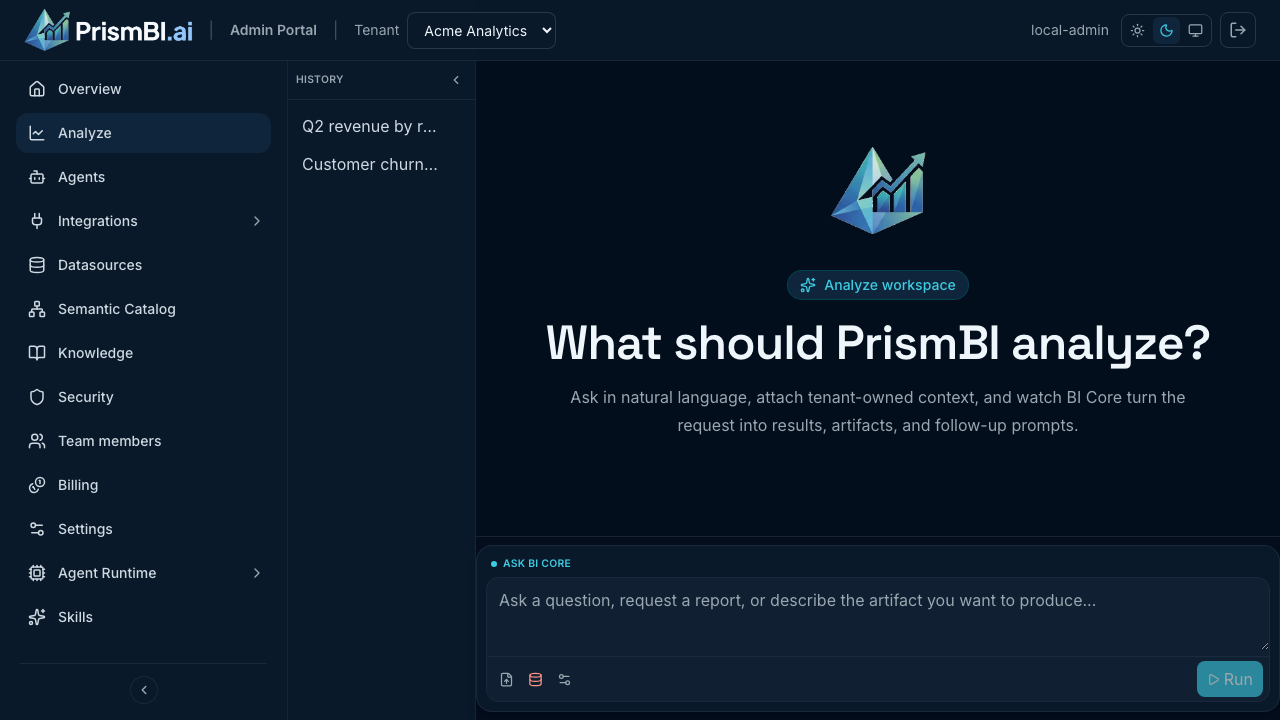
Figure: Conversation history on the Explore page.
Resume a conversation
- Open the History pane.
- Click a conversation title (for example, “Q2 revenue by region”).
- Prior turns load in the session thread; continue with a follow-up in the composer.
You can also open a conversation via URL: /explore?conversationId=<id>.
New analysis
Click New analysis in the session header to clear the local session and return to the idle hero state. This does not delete server-side history—you can reopen prior conversations from History.
Delete a conversation
From the History pane, use the delete control on a conversation row. Deletion is tenant-scoped and permanent for your organization.
Tips
- Use New analysis when switching topics to avoid confusing follow-up context.
- Conversation titles are generated from your first prompt—use a descriptive first question.
- The History pane can be collapsed to maximize chart space on smaller screens.
Troubleshooting
| Issue | What to try |
|---|---|
| History empty | Confirm correct tenant; prior threads may belong to another organization |
| Cannot follow up | Wait for running queries to finish; check credits |
| Wrong thread loaded | Use New analysis, then select the correct item from History |