
Slack messaging
Audience: Tenant admin (or custom role with manage integrations)
Goal: Connect your Slack workspace so members can ask PrismBI analytics questions in chat.
PrismBI integrates with Slack through a workspace install. After linking their PrismBI account, users can message PrismBI directly or mention @PrismBI in allowed channels to run natural-language queries and receive answers in thread.
Prerequisites
- Tenant ADMIN access or a security role that includes manage integrations
- At least one datasource with a healthy Edge Agent (see Datasources and Polling Edge agents)
- Permission to install apps in your Slack workspace (or approval from a Slack workspace admin)
Open Messaging
- Sign in to the Admin Portal and select your tenant.
- Open Integrations → Messaging (
/integrations/channels).
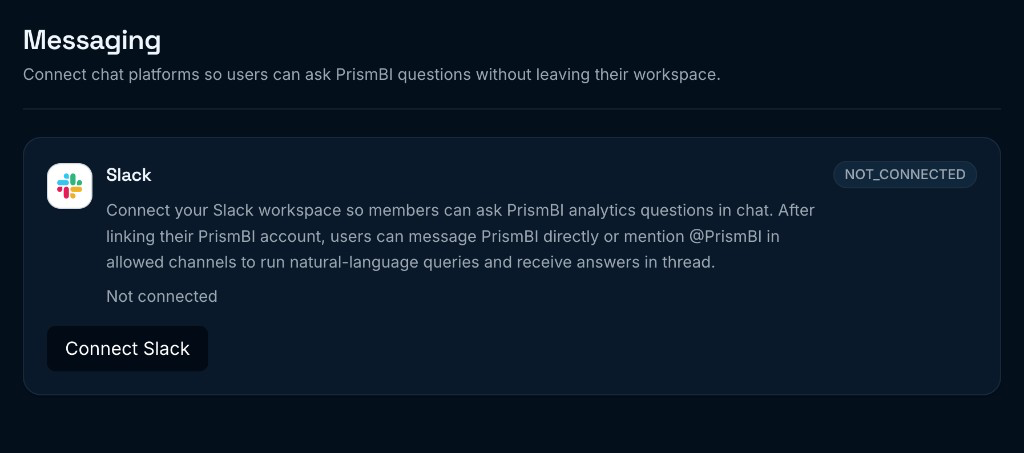
Figure: Connect Slack from the Messaging page.
Connect Slack
- Click Connect Slack.
- Approve the PrismBI app install in Slack.
- Return to the Admin Portal. The Slack card should show CONNECTED and your workspace name.
If the status shows ERROR, read the message on the card, then Disconnect and Connect Slack again after fixing the underlying issue (for example, revoked credentials).
Configure settings
After connection, set defaults used when Slack users ask questions:
| Setting | Purpose |
|---|---|
| Default datasource | Warehouse or database used when the user does not specify one |
| Default BI app | Optional curated BI app experience for channel queries |
| Allowed channel IDs | Comma-separated Slack channel IDs where @PrismBI mentions are accepted |
| Test channel / conversation ID | Target for Test connection (a channel ID or DM conversation ID) |
Direct messages to PrismBI are always allowed for linked users. The allow-list applies to shared channels only.
- Choose a default datasource (required for most warehouse questions).
- Optionally choose a default BI app.
- Add allowed channel IDs if you want @PrismBI in specific channels (copy IDs from Slack channel details).
- Click Save settings.
- Click Test connection to confirm PrismBI can post to your test channel.
Linked users
The Linked users panel lists Slack identities mapped to PrismBI users. Queries run with the linked user’s permissions and credits.
Users complete linking from a prompt PrismBI sends in Slack (see Slack for business users). Until they link, PrismBI asks them to connect their account before running a query.
File attachments from Slack
Linked users can attach CSV, Excel, TSV, plain text, or PDF files with a question in Slack—the same types supported in File uploads.
For full-file CSV or Excel analysis from Slack, your tenant must have Local upload analysis enabled in agent runtime settings. Contact your PrismBI operator if uploads fail with a configuration message.
If a user attaches a file before linking, they must complete account linking and re-send the file—attachments are not preserved across linking.
Disconnect
Click Disconnect to remove the Slack workspace from your tenant. Linked users can no longer query through Slack until an admin reconnects.
Troubleshooting
| Issue | What to try |
|---|---|
| NOT_CONNECTED after OAuth | Retry Connect Slack; confirm you approved the install in Slack |
| ERROR status | Read the card message; disconnect and reconnect; contact support if credentials were revoked platform-wide |
| Direct messages not working | Portal may warn that im:history or message.im is missing—disconnect and reconnect Slack after your operator updates the Slack app |
| @PrismBI ignored in a channel | Add the channel ID to Allowed channel IDs and save |
| User cannot query | Confirm they appear under Linked users; they must complete linking from the Slack prompt |
| File question fails | User must link first, then re-send the file; confirm upload analysis is enabled for large spreadsheets |
| Test connection fails | Verify the test channel ID and that the PrismBI bot is a member of that channel |
Related reading
- Slack for business users — how members link accounts and ask questions
- Team and roles — manage integrations custom roles
- File uploads — supported attachment types